Convert XML text to Javascript object / JSON text (and vice versa).
[](https://ci.appveyor.com/project/nashwaan/xml-js)
[](https://travis-ci.org/nashwaan/xml-js)
[](https://circleci.com/gh/nashwaan/xml-js)
[](https://www.bithound.io/github/nashwaan/xml-js)
[](https://coveralls.io/github/nashwaan/xml-js?branch=master)
[](https://codeclimate.com/github/nashwaan/xml-js)
[](https://www.codacy.com/app/ysf953/xml-js?utm_source=github.com&utm_medium=referral&utm_content=nashwaan/xml-js&utm_campaign=Badge_Grade)
[](https://www.npmjs.com/package/xml-js)
[](LICENSE)
[](https://david-dm.org/nashwaan/xml-js)
[](http://packagequality.com/#?package=xml-js)
# Synopsis
# Motivation
There are many XML to JavaScript object / JSON converters out there, but could not satisfy the following requirements:
* **Maintain Order of Sub-elements**:
Instead of converting `` to `{a:[{},{}],b:{}}`, I wanted to preserve order of elements by doing this:
`{"elements":[{"type":"element","name":"a"},{"type":"element","name":"b"},{"type":"element","name":"a"}]}`.
* **Fully XML Compliant**:
Can parse: Comments, Processing Instructions, XML Declarations, Entity declarations, and CDATA Sections.
* **Reversible**:
Whether converting xml→json or json→xml, the result should be convertable to its original form.
* **Change Property Key Name**:
Usually output of XML attributes are stored in `@attr`, `_atrr`, `$attr`, `$`, or `whatever` in order to avoid conflicting with name of sub-elements.
This library store them in `attributes`, but most importantly, you can change this to whatever you like.
* **Portable Code**:
Written purely in JavaScript (this is default behavior, but this can be slow for very large XML text).
* **Fast Code** (if required):
With little effort, the underlying [sax engine](https://www.npmjs.com/package/sax) (based on JavaScript) can be sustituted with [node-expat engine](https://github.com/astro/node-expat) (based on VC++).
* **Support Command Line**:
To quickly convert xml or json files, this module can be installed globally or locally (i.e. use it as [script](https://docs.npmjs.com/misc/scripts) in package.json).
* **Support Streaming**:
...
## Compact vs Non-Compact
Most XML to JSON convertors (including online convertors) convert `` to some compact output like `{"a":{}}`
instead of non-compact output like `{"elements":[{"type":"element","name":"a"}]}`.
While compact output might work in most situations, there are cases when different elements are mixed inside a parent element: ``.
In this case, the compact output will be something like `{a:[{_:{x:"1"}},{_:{x:"3"}}],b:{_:{x:"2"}}}`,
which has merged both `` elements into an array. If you try to convert this back to xml, you will get ``
which has not preserved the order of elements! This is an inherit limitation in the compact representation
because output like `{a:{_:{x:"1"}},b:{_:{x:"2"}},a:{_:{x:"3"}}}` is illegal.
Note that this issue does not occur in the non-compact form provided by this library.
Although non-compact output is more accurate representation of original XML than compact version, the non-compact consumes more space.
This library provides both options. Use `{compact: false}` if you are not sure because it preserves everything;
otherwise use `{compact: true}` if you want to save space and you don't care about mixing elements of same type and loosing their order.
# Usage
## Installation
```shell
npm install xml-js
```
You can also installed it globally to use it as a command line convertor.
```shell
npm install -g xml-js
```
## Quick start
```js
var convert = require('xml-js');
var xml =
'' +
'' +
' Happy' +
' Work' +
' Play' +
'';
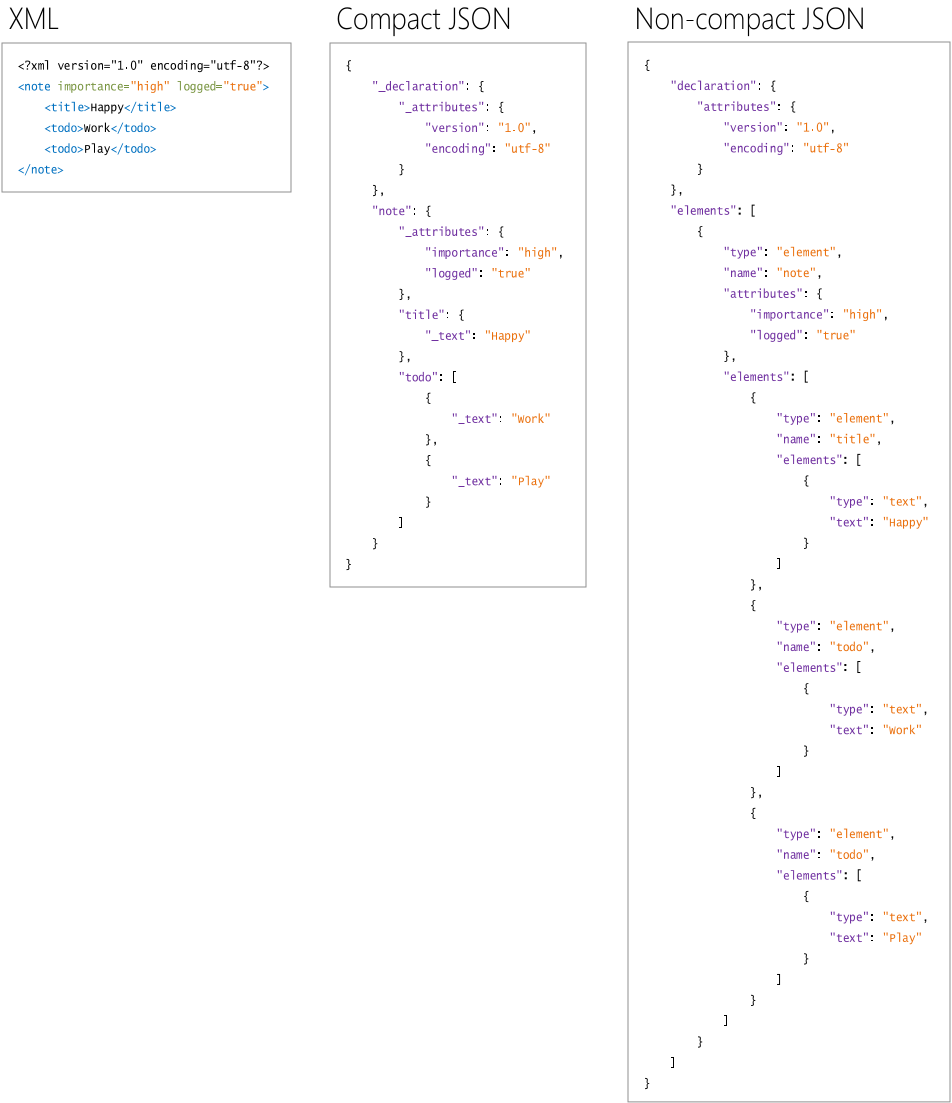
var result1 = convert.xml2json(xml, {compact: true, spaces: 4});
var result2 = convert.xml2json(xml, {compact: false, spaces: 4});
console.log(result1, '\n', result2);
```
To see the result of this code, see the output above in *Synopsis* section.
## Sample Conversions
| XML | JS/JSON compact | JS/JSON non-compact |
|:----|:----------------|:--------------------|
| `` | `{"_declaration":{}}` | `{"declaration":{}}` |
| `` | `{"_declaration":{"_attributes":{"version":"1.0","encoding":"utf-8"}}}` | `{"declaration":{"attributes":{"version":"1.0","encoding":"utf-8"}}}` |
| `` | `{"_comment":"Hello, World!"}` | `{"elements":[{"type":"comment","comment":"Hello, World!"}]}` |
| `]]>` | `{"_cdata":""}` | `{"elements":[{"type":"cdata","cdata":""}]}` |
| `` | `{"a":{}}` | `{"elements":[{"type":"element","name":"a"}]}` |
| `` | `{"a":{"_attributes":{"x":"1.234","y":"It's"}}}` | `{"elements":[{"type":"element","name":"a","attributes":{"x":"1.234","y":"It's"}}]}` |
| ` Hi ` | `{"a":{"_text":" Hi "}}` | `{"elements":[{"type":"element","name":"a","elements":[{"type":"text","text":" Hi "}]}]}` |
| `` | `{"a":{},"b":{}}` | `{"elements":[{"type":"element","name":"a"},{"type":"element","name":"b"}]}` |
| `` | `{"a":{"b":{}}}` | `{"elements":[{"type":"element","name":"a","elements":[{"type":"element","name":"b"}]}]}` |
# API Reference
## Convert JS object / JSON → XML
To convert JavaScript object to XML text, use `js2xml()`. To convert JSON text to XML text, use `json2xml()`.
```js
var convert = require('xml-js');
var json = require('fs').readFileSync('test.json', 'utf8');
var options = {ignoreText: true, spaces: 4};
var result = convert.json2xml(json, options);
console.log(result);
```
### Options for Converting JS object / JSON → XML
The below options are applicable for both `js2xml()` and `json2xml()` functions.
| Option | Default | Description |
|:----------------------|:--------|:------------|
| `spaces` | `0` | Number of spaces to be used for indenting XML output. |
| `compact` | `false` | Whether the *input* object is in compact form or not. |
| `fullTagEmptyElement` | `false` | Whether to produce element without sub-elements as full tag pairs `` rather than self closing tag ``. |
| `ignoreDeclaration` | `false` | Whether to ignore writing declaration directives of xml. For example, `` will be ignored. |
| `ignoreAttributes` | `false` | Whether to ignore writing attributes of the elements. For example, `x="1"` in `` will be ignored |
| `ignoreComment` | `false` | Whether to ignore writing comments of the elements. That is, no `` will be generated. |
| `ignoreCdata` | `false` | Whether to ignore writing CData of the elements. That is, no `` will be generated. |
| `ignoreText` | `false` | Whether to ignore writing texts of the elements. For example, `hi` text in `hi` will be ignored. |
## Convert XML → JS object / JSON
To convert XML text to JavaScript object, use `xml2js()`. To convert XML text to JSON text, use `xml2json()`.
```js
var convert = require('xml-js');
var xml = require('fs').readFileSync('test.xml', 'utf8');
var options = {ignoreText: true, alwaysChildren: true};
var result = convert.xml2js(xml, options); // or convert.xml2json(xml, options)
console.log(result);
```
### Options for Converting XML → JS object / JSON
The below options are applicable for both `xml2js()` and `xml2json()` functions.
| Option | Default | Description |
|:--------------------|:--------|:------------|
| `compact` | `false` | Whether to produce detailed object or compact object. |
| `trim` | `false` | Whether to trim white space characters that may exist before and after the text. |
| `sanitize` | `false` | Whether to replace `&` `<` `>` `"` `'` with `&` `<` `>` `"` `'` respectively in the resultant text. |
| `nativeType` | `false` | whether to attempt converting text of numerals or of boolean values to native type. For example, `"123"` will be `123` and `"true"` will be `true` |
| `addParent` | `false` | Whether to add `parent` property in each element object that points to parent object. |
| `alwaysChildren` | `false` | Whether to always generate `elements` property even when there are no actual sub elements (applicable for non-compact output). |
| `ignoreDeclaration` | `false` | Whether to ignore writing declaration property. That is, no `declaration` property will be generated. |
| `ignoreAttributes` | `false` | Whether to ignore writing attributes of elements.That is, no `attributes` property will be generated. |
| `ignoreComment` | `false` | Whether to ignore writing comments of the elements. That is, no `comment` will be generated. |
| `ignoreCdata` | `false` | Whether to ignore writing CData of the elements. That is, no `cdata` will be generated. |
| `ignoreText` | `false` | Whether to ignore writing texts of the elements. That is, no `text` will be generated. |
The below option is applicable only for `xml2json()` function.
| Option | Default | Description |
|:--------------------|:--------|:------------|
| `spaces` | `0` | Number of spaces to be used for indenting JSON output. |
## Options for Changing Key Names
To change default key names in the output object or the default key names assumed in the input JavaScript object / JSON, use the following options:
| Option | Default | Description |
|:--------------------|:--------|:------------|
| `declarationKey` | `"declaration"` or `"_declaration"` | Name of the property key which will be used for the declaration. For example, if `declarationKey: '$declaration'` then output of `` will be `{"$declaration":{}}` *(in compact form)* |
| `attributesKey` | `"attributes"` or `"_attributes"` | Name of the property key which will be used for the attributes. For example, if `attributesKey: '$attributes'` then output of `` will be `{"a":{$attributes:{"x":"hello"}}}` *(in compact form)* |
| `textKey` | `"text"` or `"_text"` | Name of the property key which will be used for the text. For example, if `textKey: '$text'` then output of `hi` will be `{"a":{"$text":"Hi"}}` *(in compact form)* |
| `cdataKey` | `"cdata"` or `"_cdata"` | Name of the property key which will be used for the cdata. For example, if `cdataKey: '$cdata'` then output of `` will be `{"$cdata":"1 is < 2"}` *(in compact form)* |
| `commentKey` | `"comment"` or `"_comment"` | Name of the property key which will be used for the comment. For example, if `commentKey: '$comment'` then output of `` will be `{"$comment":"note"}` *(in compact form)* |
| `parentKey` | `"parent"` or `"_parent"` | Name of the property key which will be used for the parent. For example, if `parentKey: '$parent'` then output of `` will be `{"a":{"b":{$parent:_points_to_a}}}` *(in compact form)* |
| `typeKey` | `"type"` | Name of the property key which will be used for the type. For example, if `typeKey: '$type'` then output of `` will be `{"elements":[{"$type":"element","name":"a","attributes":{}}]}` *(in non-compact form)* |
| `nameKey` | `"name"` | Name of the property key which will be used for the name. For example, if `nameKey: '$name'` then output of `` will be `{"elements":[{"type":"element","$name":"a","attributes":{}}]}` *(in non-compact form)* |
| `elementsKey` | `"elements"` | Name of the property key which will be used for the elements. For example, if `elementsKey: '$elements'` then output of `` will be `{"$elements":[{"type":"element","name":"a","attributes":{}}]}` *(in non-compact form)* |
> Note: You probably want to set `{textKey: 'value', cdataKey: 'value', commentKey: 'value'}` for non-compact output
> to make it more consistent and easier for your client code to go through the contents of text, cdata, and comment.
# Command Line
Because any good library should support command line usage, this library is no difference.
## As Globally Accessible Command
```shell
npm install -g xml-js // install this library globally
xml-js test.json // test.json will be converted to test.xml
xml-js test.xml // test.xml will be converted to test.json
```
## As Locally Accessible Command
If you want to use it as script in package.json (can also be helpful in [task automation via npm scripts](http://blog.keithcirkel.co.uk/how-to-use-npm-as-a-build-tool/))
```shell
npm install --save xml-js // no need to install this library globally
```
In package.json, write a script:
```json
...
"dependencies": {
"xml-js": "latest"
},
"scripts": {
"convert": "xml-js test.json"
}
```
```shell
npm run convert // task 'scripts.convert' will be executed
```
## CLI Arguments
```shell
Usage: xml-js src [options]
src Input file that need to be converted.
Conversion type xml->json or json->xml will be inferred from file extension.
Options:
--help, -h Display this help content.
--version, -v Display number of this module.
--out Output file where result should be written.
--spaces Specifies amount of space indentation in the output.
--full-tag XML elements will always be in form.
--no-decl Declaration instruction will be ignored.
--no-attr Attributes of elements will be ignored.
--no-text Texts of elements will be ignored.
--no-cdata Cdata of elements will be ignored.
--no-comment Comments of elements will be ignored.
--trim Whitespaces surrounding texts will be trimmed.
--compact JSON is in compact form.
--sanitize Special xml characters will be replaced with entity codes.
--native-type Numbers and boolean will be converted (coreced) to native type instead of text.
--always-children Every element will always contain sub-elements (applicable if --compact is not set).
--text-key To change the default 'text' key.
--cdata-key To change the default 'cdata' key.
--comment-key To change the default 'comment' key.
--attributes-key To change the default 'attributes' key.
--declaration-key To change the default 'declaration' key.
--type-key To change the default 'type' key (applicable if --compact is not set).
--cdata-key To change the default 'name' key (applicable if --compact is not set).
--elements-key To change the default 'elements' key (applicable if --compact is not set).
```
# Contribution
## Comparison with Other Libraries
[xml2js](https://www.npmjs.com/package/xml2js)
[xml2json](https://www.npmjs.com/package/xml2json)
[xml-objects](https://www.npmjs.com/package/xml-objects)
[xml-js-converter](https://www.npmjs.com/package/xml-js-converter)
[fast-xml2js](https://www.npmjs.com/package/fast-xml2js)
[co-xml2js](https://www.npmjs.com/package/co-xml2js)
[xml-simple](https://www.npmjs.com/package/xml-simple)
[xml2js-expat](https://www.npmjs.com/package/xml2js-expat)
## Testing
To perform tests on this project:
```shell
cd node_modules/xml-js
npm install
npm test
```
For live testing, use `npm start` instead of `npm test`.
## Reporting
Use [this link](https://github.com/nashwaan/xml-js/issues) to report an issue or bug. Please include a sample code or Jasmine test spec where the code is failing.
# License
[MIT](https://github.com/nashwaan/xml-js/blob/master/LICENSE)